
How to install Come Apk app
Complete guide to install Come Apk app on your device safely. Choose your device: Android (PWA or APK), iPhone/iPad (Safari), or Windows PC. All methods start from the official domain comecomeapk.app.
Confirm the site address before opening a file
Start from comecomeapk.app and inspect the full address before you install. A familiar name, an advert, or HTTPS alone does not prove that a page or file is official.
Compare the current game package on the Come Apk download hub. If an older installation is already present, check previous versions and update guidance before replacing it; desktop users can follow the PC download guide for platform-specific notes.
- ✓Type comecomeapk.app manually in the address bar — never click links from messages or groups
- ✓Verify the HTTPS padlock and that the domain has no extra hyphens, .com, .bet, or numbers
- ✓If downloading APK, verify the SHA-256 checksum published on the official download page
choose a route
Use the path that matches your device
Android browser or PWA
Use the browser shortcut steps if your goal is to reopen this guide. The browser’s install menu does not open or install an Android game file.
Android package
Use this route only when the current official download page presents a package for your device. Compare the displayed version and SHA-256 before opening the file; do not substitute a package from a search result or message.
iPhone, iPad, or PC
An APK will not run on these devices. Use Safari to save the site on Apple devices; on computers the desktop installer guide lists the available native files and the browser fallback.
android file check
Read the error before trying a second install
- The file will not open or is incomplete
- Check that the download has finished, then compare the exact length and hash to the Android release record. Stop when the bytes do not match. A renamed extension does not repair the file.
- The device says the app is incompatible
- Compare the Android version in the device’s About screen with the version requirement in the file record. A managed device can have additional restrictions. Keep those controls in place and use the browser if a compatible route is unavailable.
- An existing app conflicts with the file
- Record the installed name, package, version and source. Use the previous-version checklist before uninstalling; deleting an app can remove data and does not resolve publisher identity.
- Android or Play Protect warns about the file
- Leave the warning in place. Read Google’s Play Protect guidance if you need to understand the warning. A matching hash is only a record match. Stop if the publisher or device warning cannot be explained; do not disable protection to proceed.
when installation stops
Troubleshoot without bypassing a safety check
If the install option is missing, reopen the official address in the supported browser for that device and check the browser’s current install guidance. Do not fix a missing prompt by installing a file supplied through chat, a group, or a lookalike domain.
If a package will not open, stop before changing device security settings or entering account details. Return to the official download page, confirm that the file, version, and checksum shown there match, and use the PWA when the package path is not clearly available.
For sign-in, payment, or document requests after installation, use the trust and safety checklist. An installer cannot legitimately require a password, one-time code, payment, or identity document to unlock the application.
Check what finished installing
Android game: after checking the exact saved file and its source, open it from Downloads and read the Android installer prompt. Stop if the name, source or permission prompt is unexpected. If Android reports a successful install, check the installed app’s info and version before opening it. A hash match confirms file contents; it does not confirm the signer is the expected publisher.
Browser icon: reopen it and confirm it shows this guide. If the shortcut opens a different address, open the intended URL directly in your browser and only then save a replacement. A browser icon does not mean the Android game was installed or an account was created.
If the installed item asks for a payment, a code or an account document, use the Come Apk trust and safety checklist to identify the requester before continuing.
Find the step that failed and verify the result on your device
Take the error exactly as the device displayed it. A browser message, an Android install dialog and a sign-in error occur at different stages. Record the stage, device and file name rather than trying several unrelated downloads.
- Download opens but installation does not start. Open the completed file from Downloads, not an item still transferring. On supported Android versions, Settings → Apps → Special app access → Install unknown apps may show which source can open it; names vary by phone. If the permission is unavailable because a work profile or administrator controls the device, use the browser. If you chose to permit the source and Android successfully installs the verified file, turn that source’s permission back off.
- Android starts installation, then refuses. For a parse or compatibility error, confirm Android 7.0 or newer, exact byte count, hash and space for installation. For a conflict with an existing package, record the installed version and compare package and signer before making any change. When Play Protect blocks a file, leave the block in place and identify the source. Do not use a clone or a mirror to bypass the refusal.
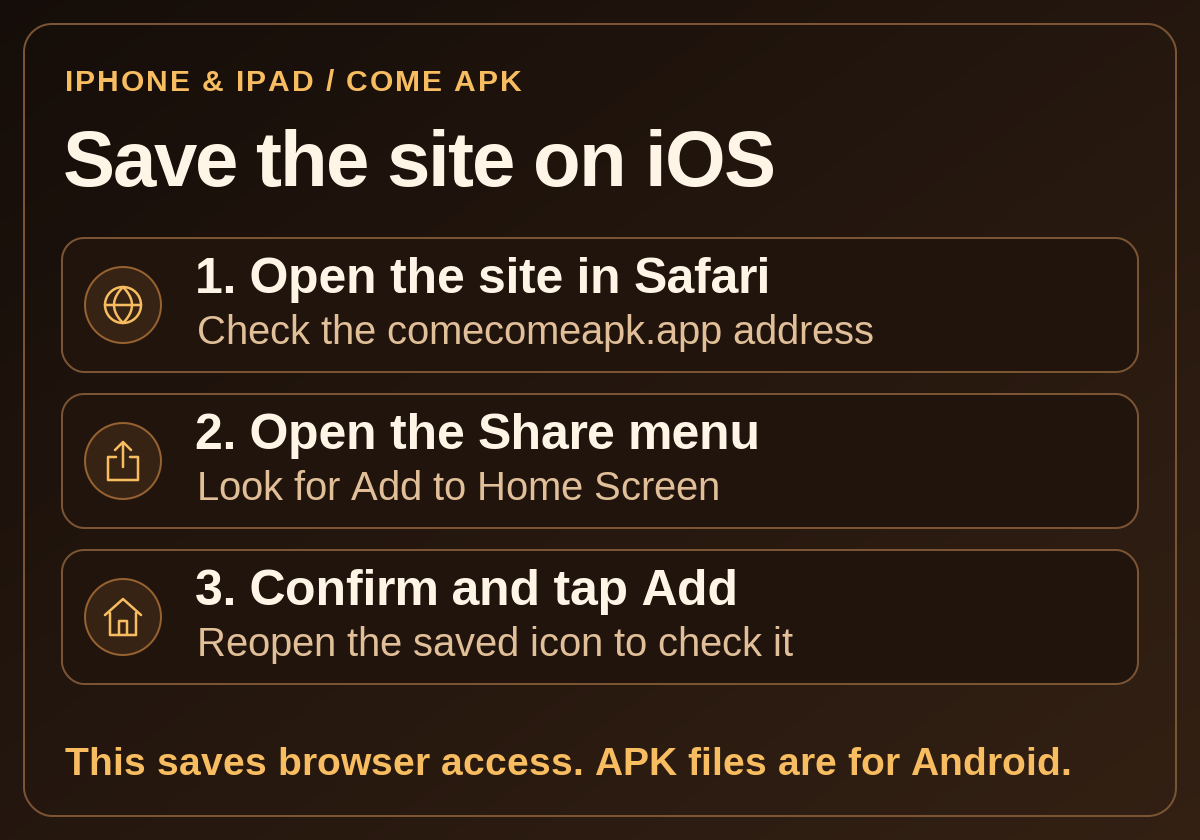
- A browser icon appears, but the game is missing. On iPhone or iPad, Safari → Share → Add to Home Screen saves this site; there is no Android installation at this step. On Android, an added website icon also opens the site, while a completed game installation appears as an Android app in Settings. For a computer that only needs the guides, the browser tab is already a working outcome.
For the Android file, check the installed app info and confirm version 1.0.2 for the matched game package. If the installer succeeded but an account prompt later fails, installation is already complete. Use the service identified in that prompt to diagnose access separately, and never include a password or one-time code in a screenshot.
Questions about installing Come Apk
What should I install to read the guide?
No installer is required. Open the site in a browser, or save a shortcut if your browser offers one. On iPhone or iPad, use Safari’s Home Screen option.
How can I check the Android game file before installing?
Match the file’s package, version, bytes and SHA-256 to its release record. A hash match does not identify the publisher. If Android warns you or the signer differs from the installed app, stop and investigate the warning.
Which address should I use for this guide?
Open https://comecomeapk.app/en/ and compare the full hostname in the address bar. An icon or an HTTPS connection on a lookalike domain does not identify this site.
Will a website shortcut hide the browser bar?
It depends on the browser, device and the option used to save the shortcut. Reopen it and check the address it loads. If it still shows a browser bar you can still read the guide.
How do I remove a shortcut or an APK?
Remove a saved website icon through its Home Screen menu or browser controls. For a separate APK, identify the package under Android Settings before uninstalling it. Removing an icon or app does not close an account.
Can I use the same account on mobile and PC?
Check compatible devices and sign-in terms with the service that holds the account. Installing this guide’s shortcut does not transfer an account or its records.